Features
What Kanban Tasker does, one idea at a time. Everything on this page is in today’s app, and the JFLib edition keeps its look.
A board for each project
Every project gets its own board, picked from the selector at the top of the window. A board can carry notes for what belongs to the project but not to a single task.
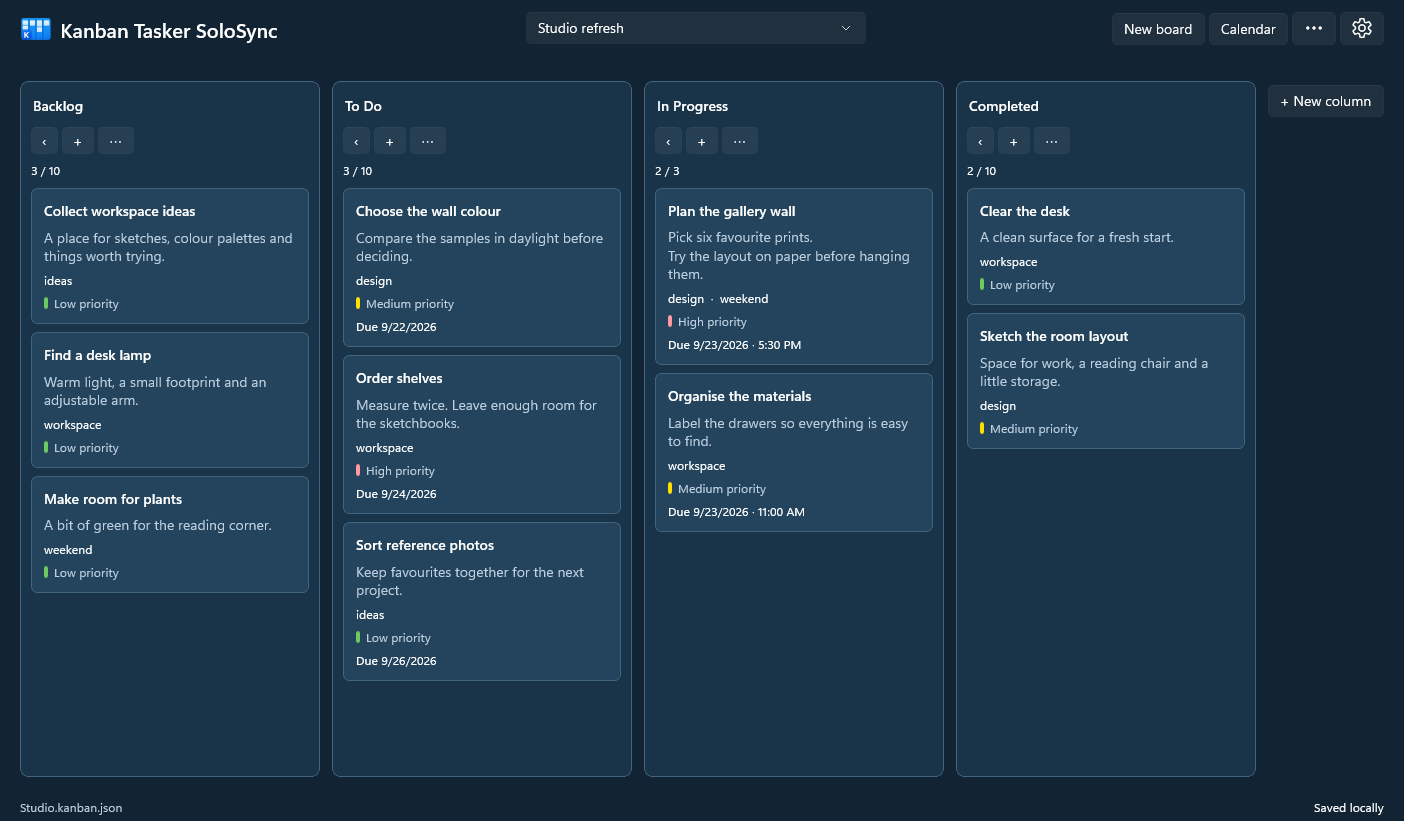
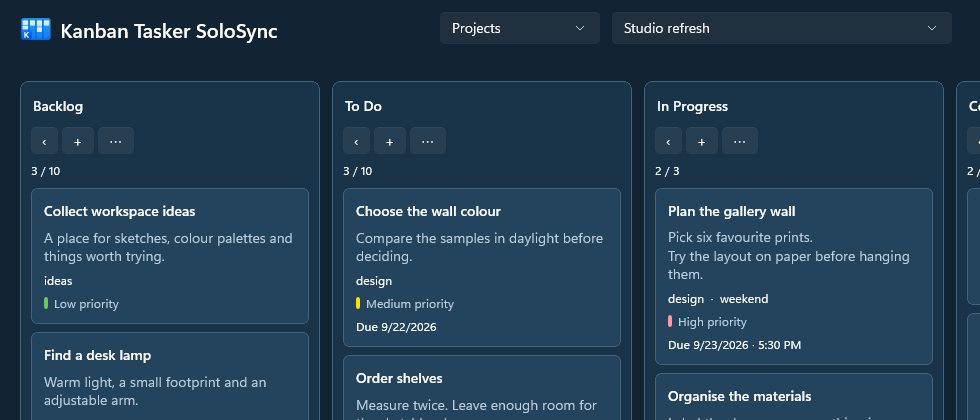
New boards start with five columns, Backlog, To Do, In Progress, Review and Completed, each with a limit of ten tasks. From there you shape them as you like.
Columns that fit the way you work
Add columns, rename them, move them left or right, or drag them by their heading. Collapse the ones you do not need right now; each device remembers its own collapsed columns.
A limit says when a column holds enough. At the limit its counter turns red and reads “limit reached”, but nothing stops you from adding more: limits are warnings, not walls. A limit of zero means no limit.
Cards with the details you need
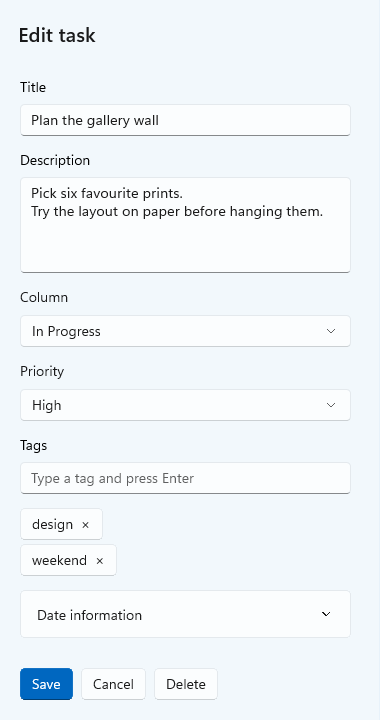
Click a card, or + in a column, and the editor opens beside the board. A task has a title, a description, its column, a priority and tags. Under Date information you find the start and finish dates, a due date with an optional time, and a reminder.
Select Save to keep your changes. A form you leave unsaved stays a local draft, and the app asks before it throws your changes away.
- The priority shows on the card as a small coloured bar: low, medium or high.
- Tags are typed and confirmed with Enter; the card lists them in one line.
- Today the Windows edition shows reminders; the JFLib edition is meant to show them everywhere.
Drag and drop, or menus
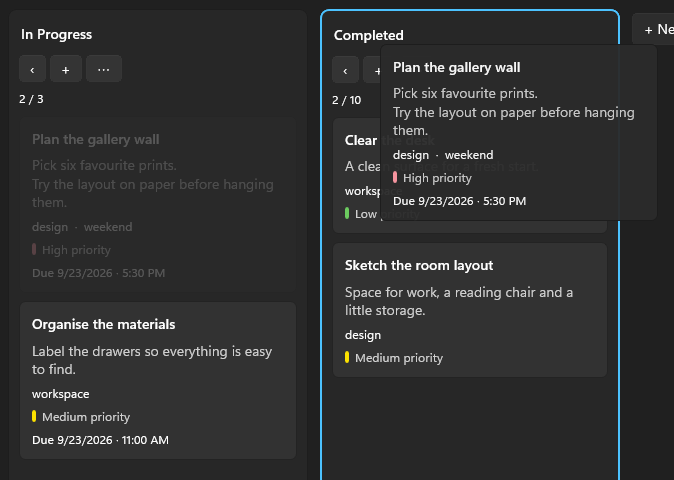
A card you pick up follows the pointer, and the column it will land in lights up. Drop it between two tasks to put it exactly there, or on a column heading to place it at the top.
Moves are saved at once. If you prefer menus, every move is in the card’s context menu as well.
Groups for work and the rest
With many boards, groups keep them apart: work, personal or whatever areas you have. Turn them on in Settings → Advanced, and a second selector appears to the left of the board selector.
- All boards shows everything, Ungrouped the boards without a group.
- Deleting a group keeps its boards and tasks, under Ungrouped.
- Groups travel with your data file; whether they are switched on is up to each device.
A calendar of what is due
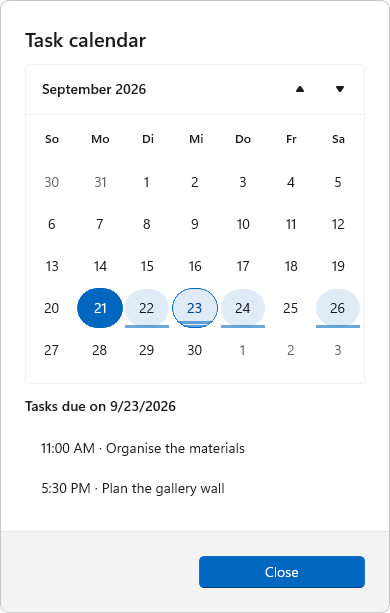
The calendar marks every day that has tasks due, and today stands out in the accent colour. Choose a day and its tasks appear below with their times; open one to edit it.
Tasks without a time are listed as “Any time”.
Four themes and five languages
Choose Light, Dark, Light blue or Dark blue in Settings → Appearance, or let the app follow your system. On Windows, contrast themes are respected.
The interface speaks English, Deutsch, Español, Français and Italiano, and a new choice applies at once. Your boards and tasks stay in the words you wrote them in.
This page has the themes too: try Theme at the top.
- Light blue
- Dark blue
- Light
- Dark
Your boards in one file
All of this lives in a single file on your device, which the sync tool you already use can carry to your other devices. No account, no cloud of its own.